Calculation Method
Dropdown Selection
What It Does
Select the prayer calculation method for your location. Different countries and regions use different methods. Choose one that matches your local Islamic authority.
How To Access
Prayer Time Tab → Prayer Calculation Method section → Calculation Method dropdown
Available Methods
- Kemenag Indonesia: Indonesian Department of Religion
- Jakim Malaysia: Malaysian Islamic Authority
- Umm Al-Qura University: Makkah method
- Muslim World League: International standard
- Islamic Society of North America: North America method
- And 12 more international methods...
- Custom Schedule [Gold]: Upload your own custom prayer times (Gold Plan only)
City/District (For Kemenag) Indonesia
Location Dropdown
Condition
Only appears when you select "Kemenag Indonesia" as calculation method
What It Does
Select your city or district from the list. This is used to calculate accurate prayer times based on Kemenag database.
How To Access
Prayer Time Tab → Prayer Calculation Method section → Kota/Kab dropdown (appears after selecting Kemenag)
Prayer Time Zone (For Jakim) Malaysia
Zone Selection
Condition
Only appears when you select "Jakim Malaysia" as calculation method
What It Does
Select your prayer time zone from Malaysia's official JAKIM zones. Different states and areas have different prayer times.
How To Access
Prayer Time Tab → Prayer Calculation Method section → Zon Waktu Solat dropdown (appears after selecting Jakim)
Custom Schedule File URL Gold Plan
URL Input
Condition
Only appears when you select "Custom Schedule [Gold]" as calculation method
What It Does
For Gold Plan members: Upload a custom prayer schedule file from your own server. This allows complete control over prayer times.
How To Access
Prayer Time Tab → Prayer Calculation Method section → File Url field (appears after selecting Custom Schedule)
Masjid Coordinates
Google Map Selection
What It Does
Search and select your masjid's exact location on the map. This is used for accurate prayer time calculation based on latitude and longitude.
How To Access
Prayer Time Tab → Prayer Calculation Method section → Masjid Coordinates map
How To Use
Type your masjid's address in the search box and click on the location in the map. The system will save the exact coordinates automatically.
Shafaq Mode
Selection
Condition
Only appears when you select "Moonsighting Committee Worldwide" as calculation method
What It Does
Choose which Shafaq (twilight/dusk) definition to use for Isha prayer time calculation.
Options
- General: Standard twilight definition
- Ahmer: Reddish twilight
- Abyad: Whitish twilight
Asr Calculation Method
Madhab Selection
Condition
Only appears when NOT using Kemenag, Jakim, or Custom methods
What It Does
Choose which Islamic jurisprudence (Madhab) to use for calculating Asr prayer time.
Options
- Standard (Shafi, Maliki, Hanbali): Most common Madhhabs
- Hanafi: Hanafi Madhab
Midnight Mode
Calculation Method
Condition
Only appears when NOT using Kemenag, Jakim, or Custom methods
What It Does
Choose how to calculate the midnight point for Qiyam prayer timing.
Options
- Standard: Midpoint between Sunset and Sunrise
- Jafari: Midpoint between Sunset and Fajr
Latitude Adjustment Mode
Adjustment Method
Condition
Only appears when NOT using Kemenag, Jakim, or Custom methods
What It Does
Choose how to adjust prayer times for extreme latitudes (e.g., UK, Scandinavia) where sun may not set during summer.
Options
- Middle of the Night: Estimate based on midnight
- One Seventh: Divide night into 7 parts
- Angle Based: Use 15 degree angle
Prayer Time Corrections
Range Adjustments (-120 to +120 minutes)
What It Does
Fine-tune each prayer time by adding or subtracting minutes. Use this if the calculated times don't match your masjid's actual times.
How To Access
Prayer Time Tab → Manual Corrections section → (Shubuh, Shuruq, Dhuhr, Asr, Maghrib, Isha)
Example
If Dhuhr is calculated as 12:15 PM but your imam says it should be 12:10 PM, set the Dhuhr correction to -5 minutes.
Iqamah Duration Settings
Time Range (1-60 minutes)
What It Does
Set how long after Azan (call to prayer) the Iqamah (preparation to start prayer) is called. This is the time congregants have to enter the prayer line.
How To Access
Prayer Time Tab → Iqamah Duration section → Select time for each prayer (Shubuh, Dhuhr, Asr, Maghrib, Isha)
Typical Durations
• Shubuh: 10-15 minutes
• Dhuhr/Asr: 5-10 minutes
• Maghrib: 5 minutes
• Isha: 10 minutes
Shuruq (Sunrise) Duration
Time Range (1-60 minutes)
What It Does
Duration from Shuruq time until regular prayers resume. Set this based on when your masjid typically opens after sunrise.
Default
15 minutes is standard, but adjust based on your masjid's schedule.
Show Shalat Jumat (Friday Prayer)
Toggle On/Off
What It Does
Enable or disable the Friday prayer (Shalat Jumat) feature on your displays. Check if your masjid holds Friday prayers.
How To Access
Prayer Time Tab → Shalat Jumat section → Show Shalat Jumat toggle
Shalat Jumat Duration
Time Range (1-60 minutes)
Condition
Only appears when "Show Shalat Jumat" is enabled
What It Does
Average duration of your Friday prayer khutbah (sermon) and prayer combined. This helps schedule the display correctly on Fridays.
Typical Duration
Most khutbahs are 15-30 minutes, plus 5-10 minutes for prayer. Set to 20-40 minutes total.
Shalat Jumat Slider Plan Dependent
Repeater (Multiple Slides)
Condition
Only appears when "Show Shalat Jumat" is enabled
What It Does
Create a slideshow that displays during Shalat Jumat. Can include images, videos, or YouTube links.
Plan Limits
- Free: 1 image slide
- Silver: 5 slides (image & video)
- Gold: 10 slides (image & video)
Slide Options
- Slide Type: Image, YouTube, or External Video
- Duration: How long each slide displays (seconds)
- Image: Upload image file
- YouTube URL: Paste YouTube link
- External Video: Paste external video URL
Show Imsak Time (Ramadan)
Toggle On/Off
What It Does
During Ramadan, show Imsak time instead of Shuruq time. Imsak is the time to stop eating before Fajr during fasting.
How To Access
Prayer Time Tab → Ramadan section → Show Imsak Time toggle
Custom Imsak Time Offset
Time Range (0-20 minutes)
Condition
Only appears when "Show Imsak Time" is enabled
What It Does
Number of minutes before Fajr when Imsak is calculated. Standard is 10 minutes before Fajr.
Show Taraweeh Khusyuk Screen Gold Plan
Toggle On/Off
What It Does
During Ramadan Taraweeh prayer, display a black screen (Khusyuk) to help congregants focus. Gold Plan feature.
How To Access
Prayer Time Tab → Ramadan section → Show Taraweeh Khusyuk Screen toggle
Taraweeh Khusyuk Delay Gold Plan
Time Range (10-60 minutes)
Condition
Only appears when "Show Taraweeh Khusyuk Screen" is enabled
What It Does
Minutes after Isha Iqamah ends before the black khusyuk screen appears. Set this to match when your Taraweeh actually starts.
Taraweeh Duration Gold Plan
Time Range (10-90 minutes)
Condition
Only appears when "Show Taraweeh Khusyuk Screen" is enabled
What It Does
Total duration of your Taraweeh prayer. The khusyuk screen will display for this duration, then turn off automatically.
Typical Duration
Most Taraweeh sessions are 60-90 minutes (20 rakats).
Azan Alarm Sound
Audio Selection
What It Does
Choose the sound that plays when Azan (call to prayer) time arrives. Select from various Quranic recitations or alarm sounds.
How To Access
Prayer Time Tab → Prayer Alarm Sound section → Azan Alarm Sound dropdown
Options
- Alarm 1 & 2 (generic alarms)
- Masjid al-Haram Short & Full (Makkah Azan)
- Mishary Rasyid 1 & 2 (different recitations)
- Ahmad al-Nafees (different recitation)
- Hafiz Mustafa Özcan (Turkish recitation)
Iqamah Alarm Sound
Audio Selection
What It Does
Choose the sound that plays when Iqamah (preparation signal) is called. Usually a shorter, quicker sound than Azan.
How To Access
Prayer Time Tab → Prayer Alarm Sound section → Iqamah Alarm Sound dropdown
Options
- Alarm 1 & 2 (generic alarms)
- Mishary Rasyid Iqamah (specific Iqamah recitation)
Theme Layout Silver & Gold
Visual Theme Selector
What It Does
Choose from 9 pre-designed display layouts. Each layout has a different arrangement of prayer times, information, and content areas. Free plan users get the default layout.
How To Access
Layout Style Tab → Theme Layout (image selection with 9 options)
Tips
Browse through different themes to find one that matches your masjid's aesthetic. You can preview each theme before selecting.
Available Theme Layouts (9 Options)
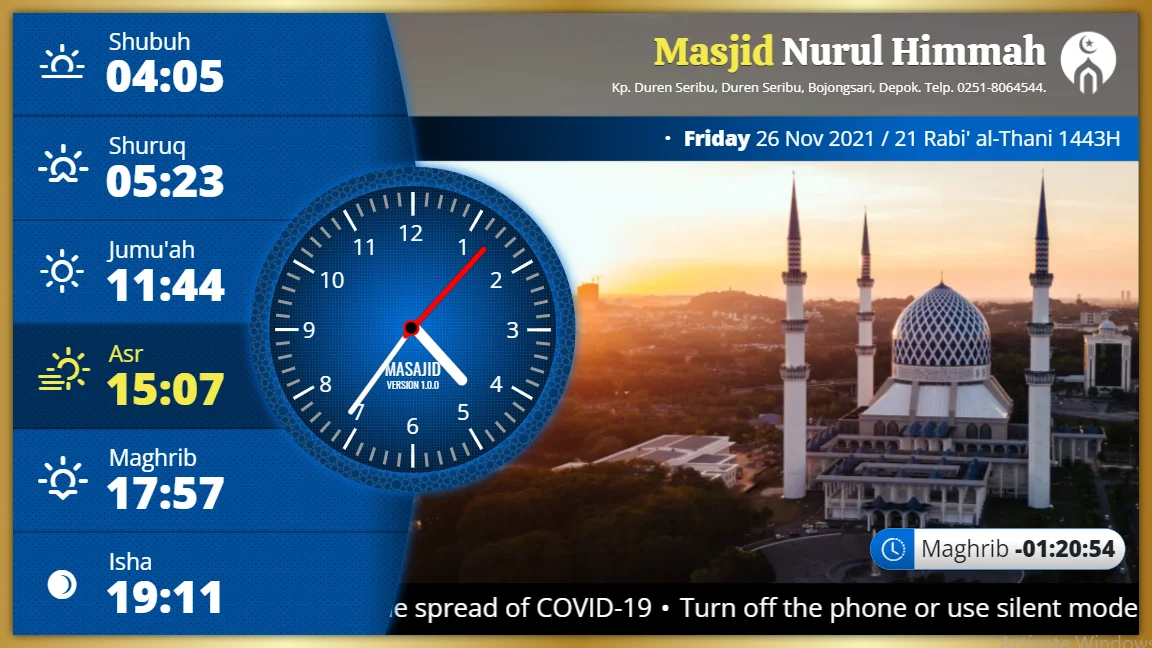
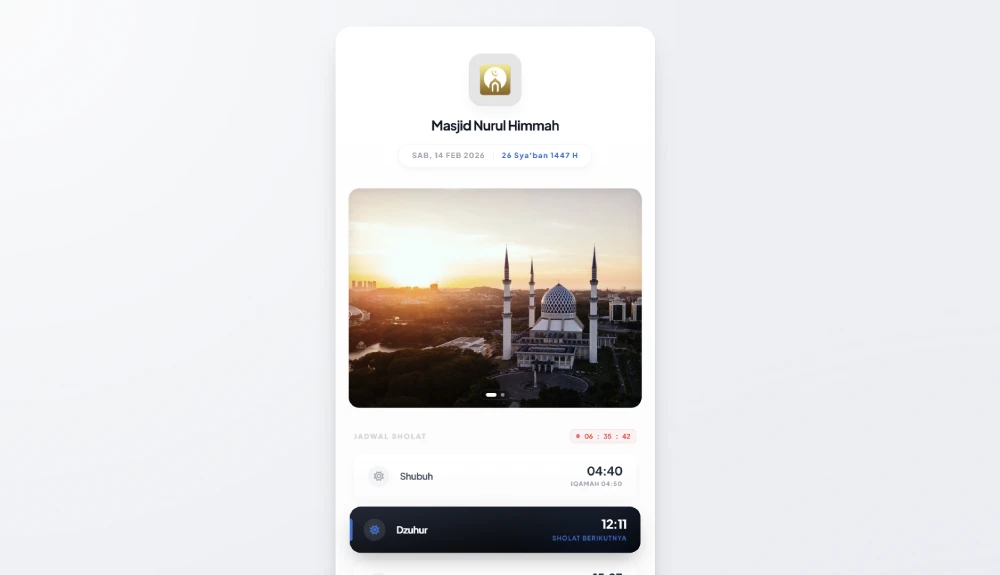
Theme 1
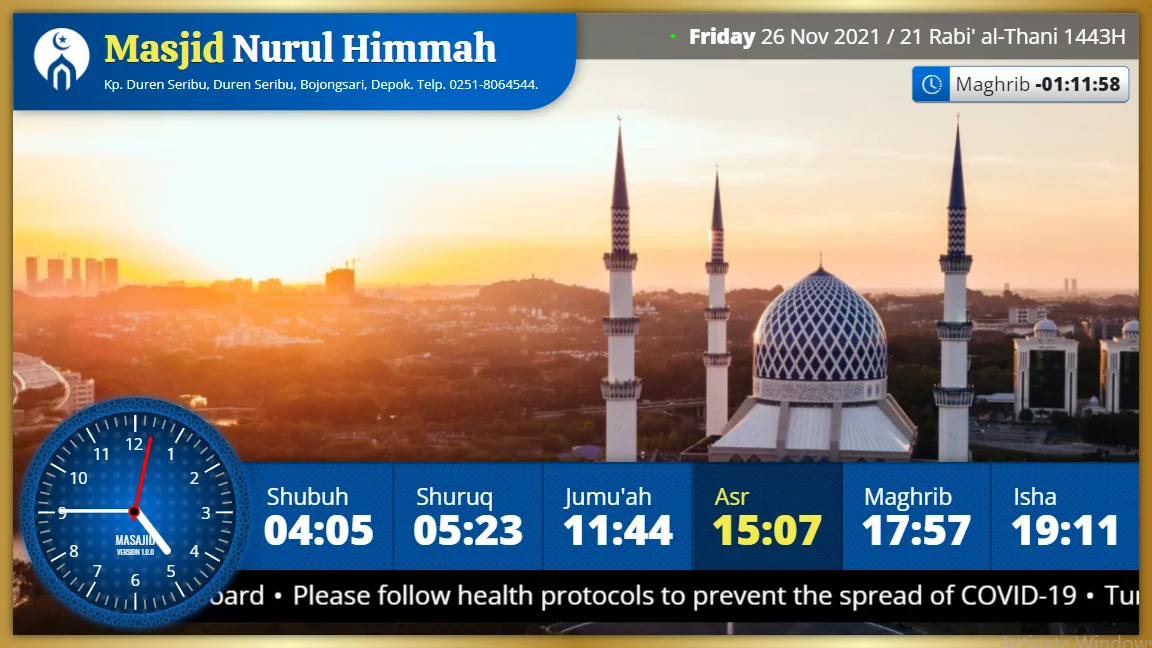
Theme 2
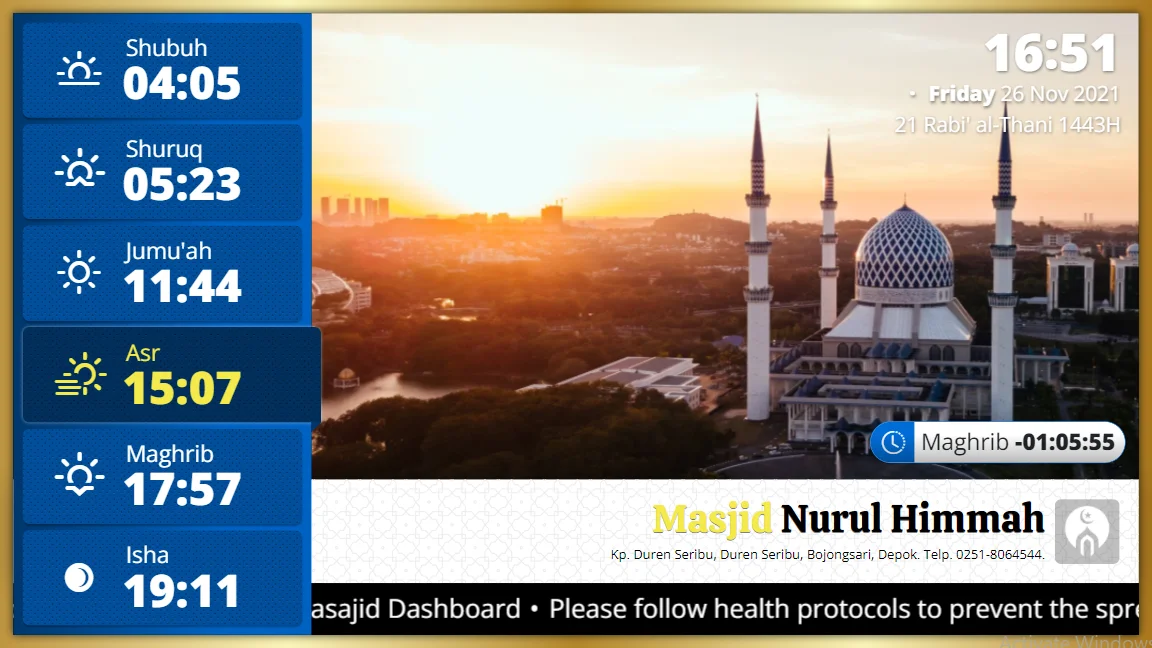
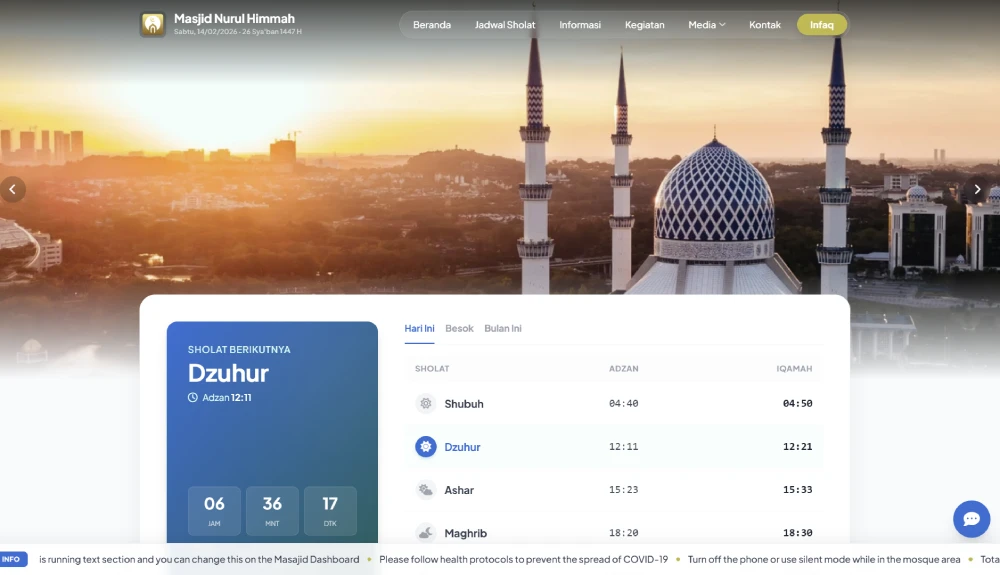
Theme 3
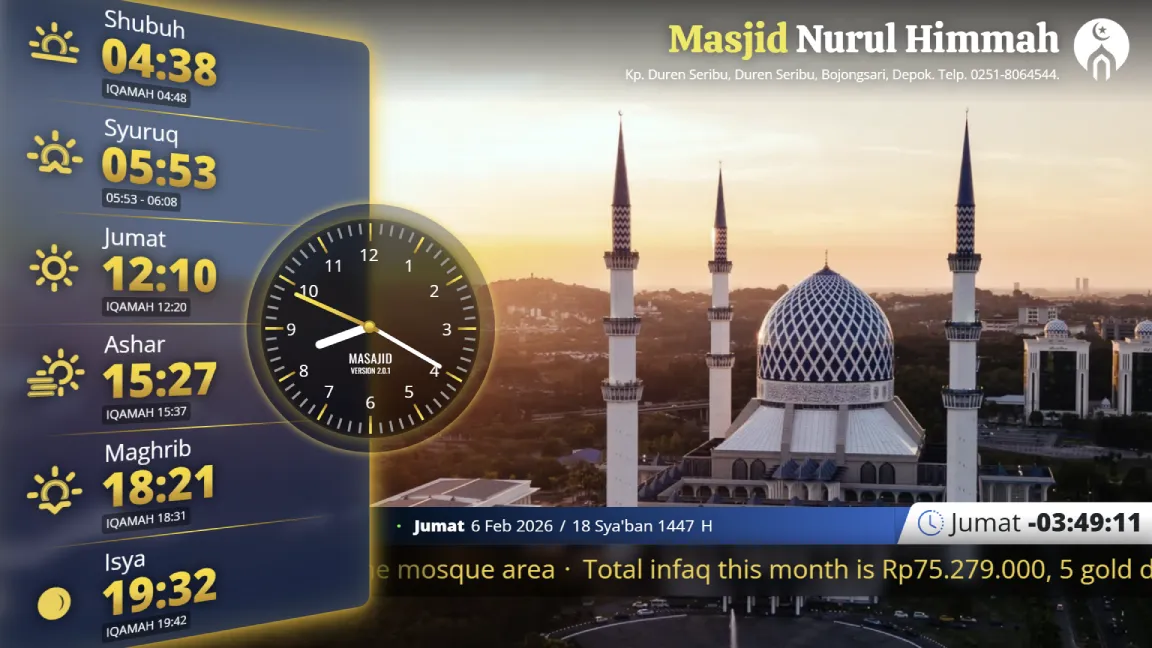
Theme 4
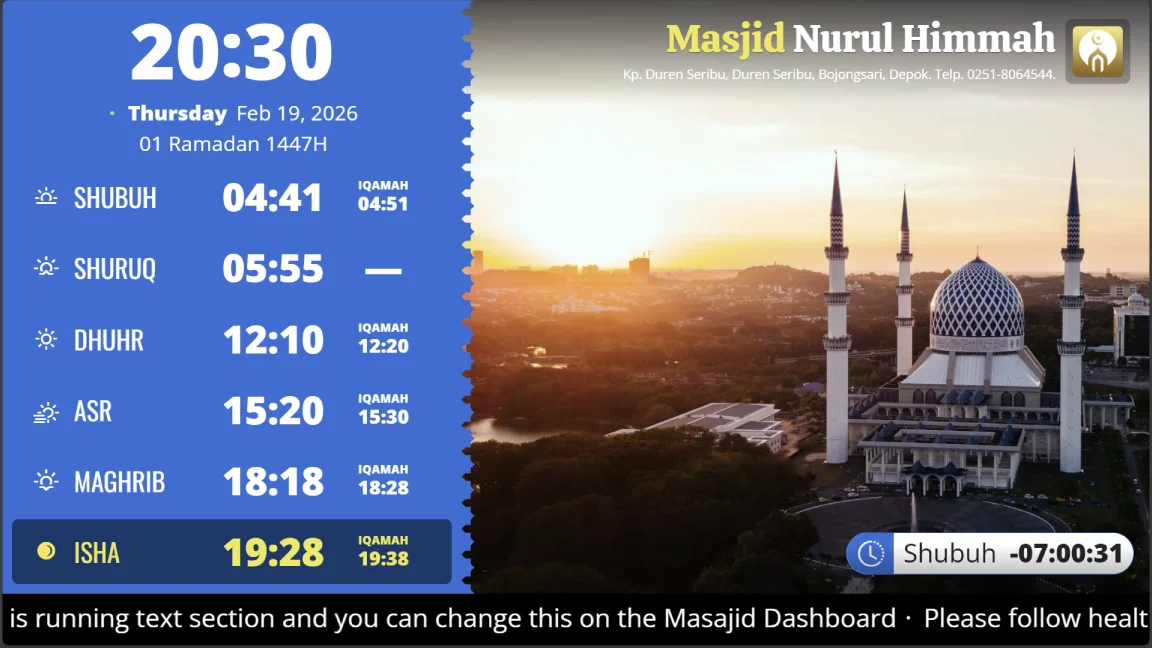
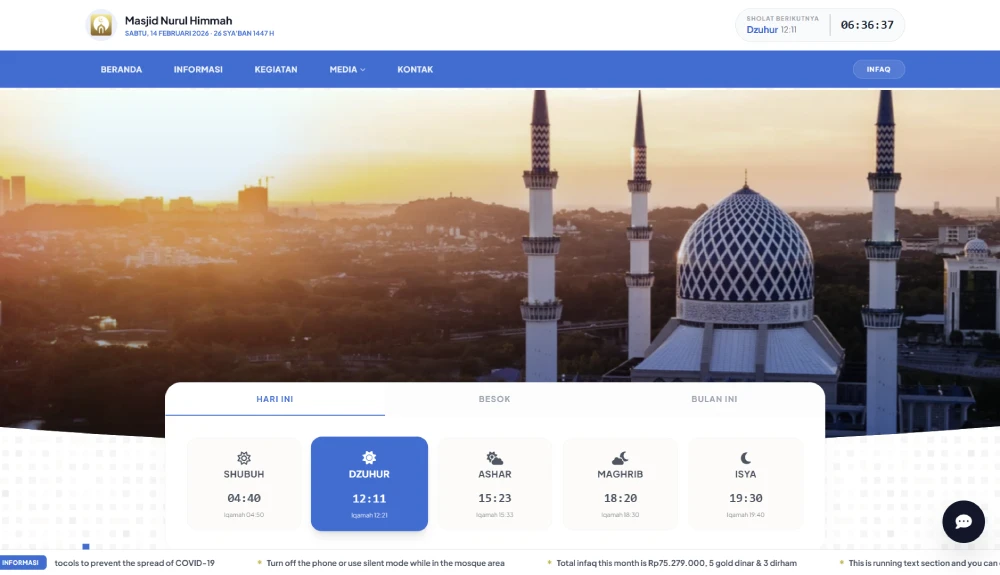
Theme 5
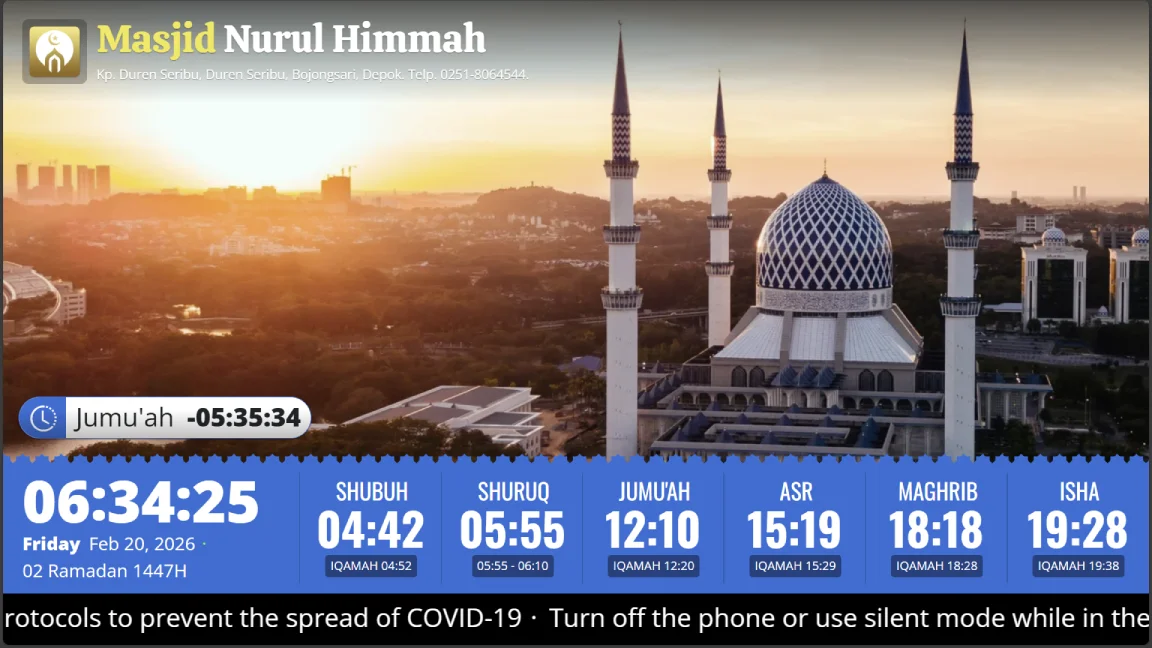
Theme 6
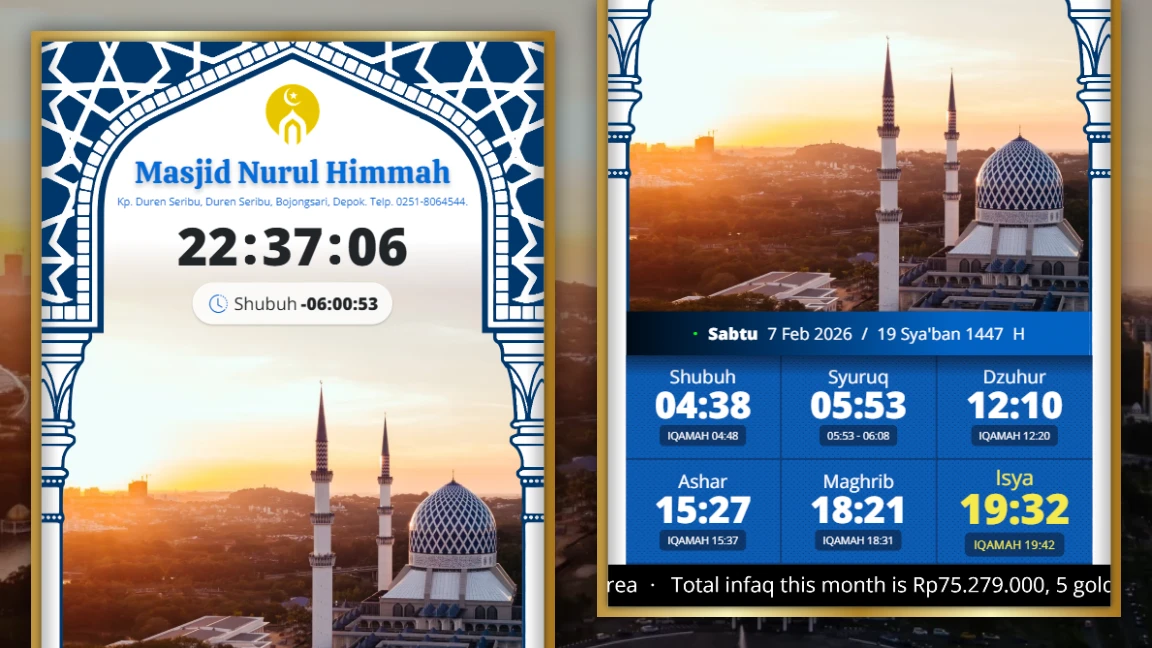
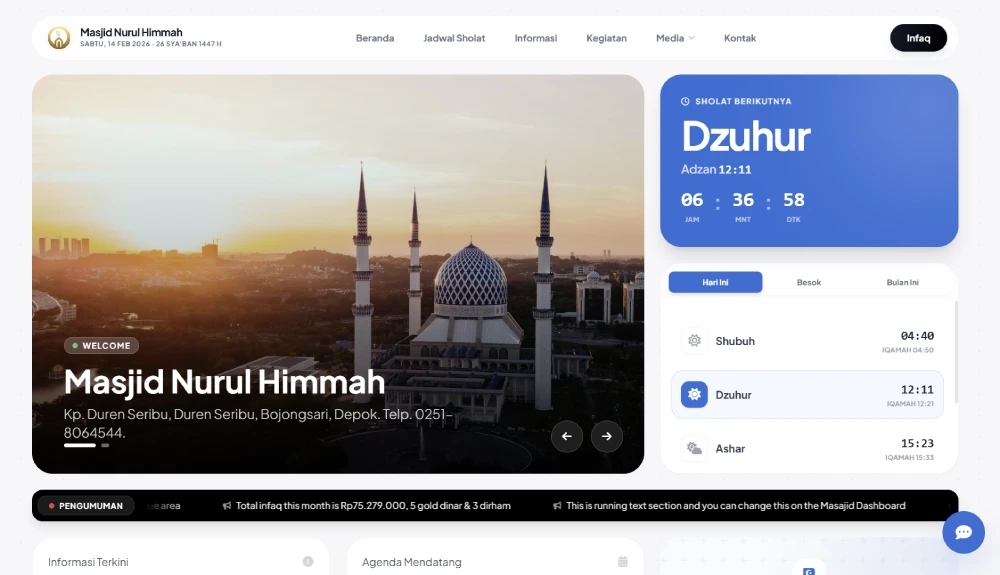
Theme 7
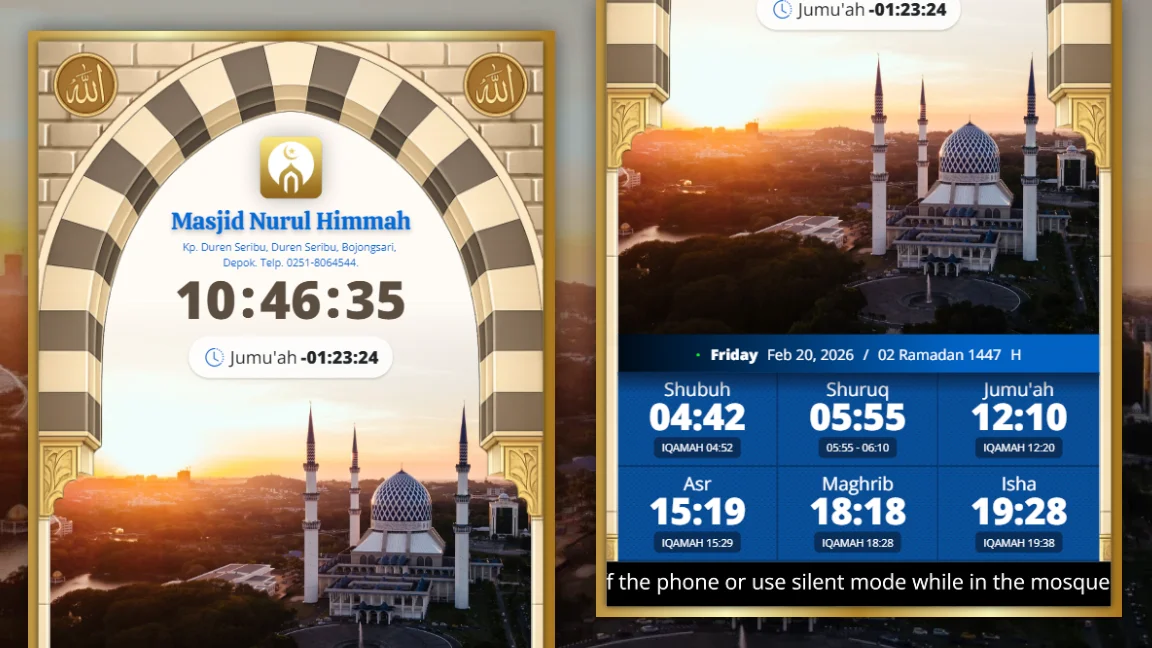
Theme 8
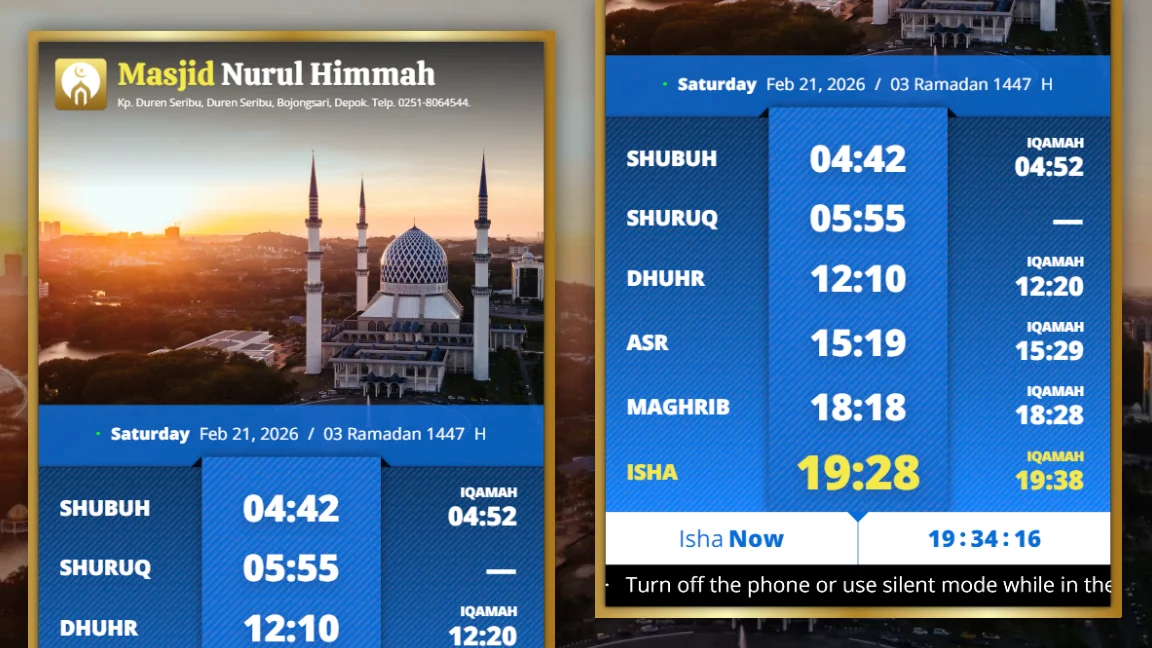
Theme 9
Primary Color Silver & Gold
Color Picker
What It Does
Choose the main background color of your display. This is typically the dominant color in your masjid's branding.
How To Access
Layout Style Tab → Primary Color color picker
Preset Colors
Blue (#006dd8), Teal, Green, Red, Orange, Yellow, Cyan, Purple, Pink - or choose any custom color.
Secondary Color Silver & Gold
Color Picker
What It Does
Choose the accent/highlight color for text and accents. This complements your primary color and should have good contrast for readability.
How To Access
Layout Style Tab → Secondary Color color picker
Layout Direction
Radio Selection
What It Does
Choose reading direction: Left-to-Right (English, European) or Right-to-Left (Arabic, Hebrew). The entire display will flip accordingly.
How To Access
Layout Style Tab → Layout Direction (Left to Right / Right to Left options)
Options
- Left to Right: For English and most languages
- Right to Left: For Arabic and similar languages
Show Iqamah Time
Toggle On/Off
What It Does
Display the Iqamah time next to each prayer time, or hide it if you only want to show Azan times.
How To Access
Layout Style Tab → Show Iqamah Time toggle
Energy Saving Mode Gold Plan
Toggle On/Off
What It Does
Automatically turn off the display during non-prayer times to save electricity and extend screen life. Screen turns on before prayer times and off after.
How To Access
Layout Style Tab → Energy Saving Mode toggle
Energy Saving Duration Gold Plan
Time Range
Condition
Only appears when "Energy Saving Mode" is enabled
What It Does
Number of minutes before and after prayer time to keep the display on. E.g., if set to 15 minutes, screen turns on 15 minutes before prayer and off 15 minutes after.
Typical Setting
15-30 minutes gives enough time for late arrivals and post-prayer announcements.
Khusyuk Mode Gold Plan
Toggle On/Off
What It Does
Display a black screen (Khusyuk) after Iqamah during prayer to help congregants focus without distractions.
How To Access
Layout Style Tab → Khusyuk Mode toggle
Khusyuk Duration Gold Plan
Time Range
Condition
Only appears when "Khusyuk Mode" is enabled
What It Does
How long the black screen displays after Iqamah. E.g., if set to 15 minutes, the screen remains black for 15 minutes during prayer, then returns to normal.
Typical Duration
Masjid's average prayer duration (5-30 minutes depending on prayer type).
Main Screen Slider Plan Dependent
Repeater (Multiple Slides)
What It Does
Create a main slideshow that displays on the primary prayer time screen when no prayer is happening. Can mix images, YouTube videos, and external videos.
How To Access
Main Slider Tab → Main Screen Slider section → Add Slide button
Plan Limits
- Free: 1 image slide
- Silver: 5 slides (image & video)
- Gold: 10 slides (image & video)
Slide Types
- Image Slide: Upload image file
- YouTube Video: Paste YouTube URL
- External Video: Paste video URL from other sources
- Internal Video: Upload video file directly
- Makkah Live: Show live Masjid al-Haram broadcast
- Madinah Live: Show live Masjid al-Nabawi broadcast
Enable Jumbotron Slider Gold Plan
Toggle On/Off
What It Does
Large full-screen slideshow that displays all day and automatically hides during prayer times. Great for announcements and content.
How To Access
Jumbotron Slider Tab → Enable Jumbotron Slider toggle
Jumbotron Hiding Duration Gold Plan
Time Range
Condition
Only appears when "Enable Jumbotron Slider" is turned on
What It Does
How many minutes before and after each prayer time to hide the jumbotron. E.g., 15 minutes means it hides 15 min before and 15 min after prayer.
Jumbotron Slider Slides Gold Plan
Repeater (Up to 10 Slides)
Condition
Only appears when "Enable Jumbotron Slider" is enabled
What It Does
Add slides to the full-screen jumbotron display. Each slide can be an image, YouTube video, or external video.
Use Cases
• Promotional banners for masjid services
• Upcoming events and announcements
• Donation appeals
• Educational Islamic content
• Community messages
Enable Info Slide Silver & Gold
Toggle On/Off
What It Does
Table-style information display that shows title and description for each row. Perfect for announcements, event lists, and community info.
How To Access
Info Slide Tab → Enable Info Slide toggle
Info Visibility Silver & Gold
Number Range
Condition
Only appears when "Enable Info Slide" is turned on
What It Does
How many info items to display initially. Additional items can be scrolled to view. E.g., set to 3 to show first 3 items, then users scroll for more.
Info Scrolling Speed Silver & Gold
Speed Range
Condition
Only appears when "Enable Info Slide" is turned on
What It Does
Control how fast the info slide scrolls through the items. Higher = faster scrolling.
Info Slide Duration Silver & Gold
Time Range
Condition
Only appears when "Enable Info Slide" is turned on
What It Does
How long (in seconds) to display the complete info slide before rotating to next content or prayer time.
Info Table Items Silver & Gold
Repeater
Condition
Only appears when "Enable Info Slide" is turned on
What It Does
Add individual information items (rows) to your info slide. Each item has a title and description.
Examples
- Title: "Jumu'ah Khutbah This Week"
Description: "Shaykh Ahmad will deliver khutbah at 12:30 PM on Friday in English"
- Title: "[Donation] Quran Class"
Description: "Weekly Quran class after Maghrib - All welcome to attend"
- Title: "[Event] Eid Celebration"
Description: "Join us for Eid prayers and festivities - Mark your calendars!"
Plan Limits
- Silver: Up to 5 info items
- Gold: Up to 10 info items
Enable Donation Slide Silver & Gold
Toggle On/Off
What It Does
Display a custom donation screen with QR code, background image, and donation message. Appears periodically on displays.
How To Access
Donation Slide Tab → Enable Donation Slide toggle
Donation Slide Duration Silver & Gold
Time Range (seconds)
Condition
Only appears when "Enable Donation Slide" is turned on
What It Does
How long to display the donation screen each time it appears.
Donation Description Silver & Gold
Text Area
Condition
Only appears when "Enable Donation Slide" is turned on
What It Does
Message text that appears on the donation screen. Explain why people should donate or what donations support.
Example
"Support our Masjid - Your donation helps maintain our facilities, teaching programs, and community services"
Donation Background Image Silver & Gold
Image Upload
Condition
Only appears when "Enable Donation Slide" is turned on
What It Does
Background image for the donation slide. Use an attractive masjid photo or Islamic design.
Donation QR Code Silver & Gold
Image Upload
Condition
Only appears when "Enable Donation Slide" is turned on
What It Does
QR code image that people can scan to donate via mobile payment (PayPal, bank transfer, etc.)
Islamic Events Calendar
Repeater
What It Does
Add Islamic holidays and important dates (Eid, Ramadan, Hijri anniversaries, etc.) to display on the system.
Examples
- Eid al-Fitr - End of Ramadan
- Eid al-Adha - Festival of Sacrifice
- Islamic New Year (Muharram 1)
- Ramadan Start
- Laylat al-Qadr (Night of Power)
Running Text (Scrolling Announcements)
Repeater
What It Does
Add messages that scroll across the bottom of the screen like a news ticker. Great for quick announcements.
How To Access
Running Text Tab → Running Text section → Add message
Plan Limits
- Free: 3 messages
- Silver: 5 messages
- Gold: 10 messages
Examples
- "Please turn off mobile phones in the mosque"
- "Ramadan is a month of blessings - increase your good deeds"
- "Weekend Quran classes start after Maghrib"
- "Donate to support our community"
Running Text Speed
Speed Range
What It Does
How fast the text scrolls across the screen. Higher value = faster scrolling.
Running Text Direction
Direction Selection
What It Does
Choose which direction the text scrolls: left-to-right or right-to-left.
Enable Shubuh Murattal Gold Plan
Toggle On/Off
What It Does
Automatically play Quran recitation (Murattal) before Shubuh prayer starts. Helps people arrive early and focus spiritually.
How To Access
Scheduled Murattal Tab → Enable Shubuh Murattal toggle
Shubuh Autoplay Duration Gold Plan
Time Range (minutes)
Condition
Only appears when "Enable Shubuh Murattal" is turned on
What It Does
How long before Shubuh to start playing Murattal. E.g., 15 means start 15 minutes before Shubuh time.
Shubuh Surah Selection Gold Plan
Surah Dropdown
Condition
Only appears when "Enable Shubuh Murattal" is turned on
What It Does
Choose which Surah (chapter) of Quran to play. Can select any Surah with famous reciters.
Dhuhr Murattal Configuration Gold Plan
Same as Shubuh (Enable, Duration, Surah)
What It Does
Configure automatic Quran recitation for Dhuhr prayer. Same options as Shubuh.
Friday (Jumat) Murattal Configuration Gold Plan
Same as Shubuh (Enable, Duration, Surah)
What It Does
Configure Quran recitation for Friday prayers specifically. Same options as other prayer times.
Asr Murattal Configuration Gold Plan
Same as Shubuh (Enable, Duration, Surah)
What It Does
Configure Quran recitation for Asr prayer. Same options as other prayer times.
Maghrib Murattal Configuration Gold Plan
Same as Shubuh (Enable, Duration, Surah)
What It Does
Configure Quran recitation for Maghrib prayer. Same options as other prayer times.
Isha Murattal Configuration Gold Plan
Same as Shubuh (Enable, Duration, Surah)
What It Does
Configure Quran recitation for Isha prayer. Same options as other prayer times.
Enable Morning Dhikr Gold Plan
Toggle On/Off
What It Does
Play Islamic remembrance (Dhikr) audio in the morning. Usually recitation of Subhana'Allah, Alhamdulillah, etc.
Morning Dhikr Audio Gold Plan
Audio Selection
Condition
Only appears when "Enable Morning Dhikr" is turned on
What It Does
Choose which morning Dhikr audio file to play.
Enable Evening Dhikr Gold Plan
Toggle On/Off
What It Does
Play Islamic remembrance (Dhikr) audio in the evening. Usually recitation of protective and thanking phrases.
Evening Dhikr Audio Gold Plan
Audio Selection
Condition
Only appears when "Enable Evening Dhikr" is turned on
What It Does
Choose which evening Dhikr audio file to play.